Back to Knowledge Base

Prowlarr Tools & Indexer Troubleshooting

Last updated: Feb 10, 2026

This guide explains the core tools and how to add or fix indexers in Prowlarr.

Technology stack overview

These tools work together to manage your library and send indexer searches to the right app.

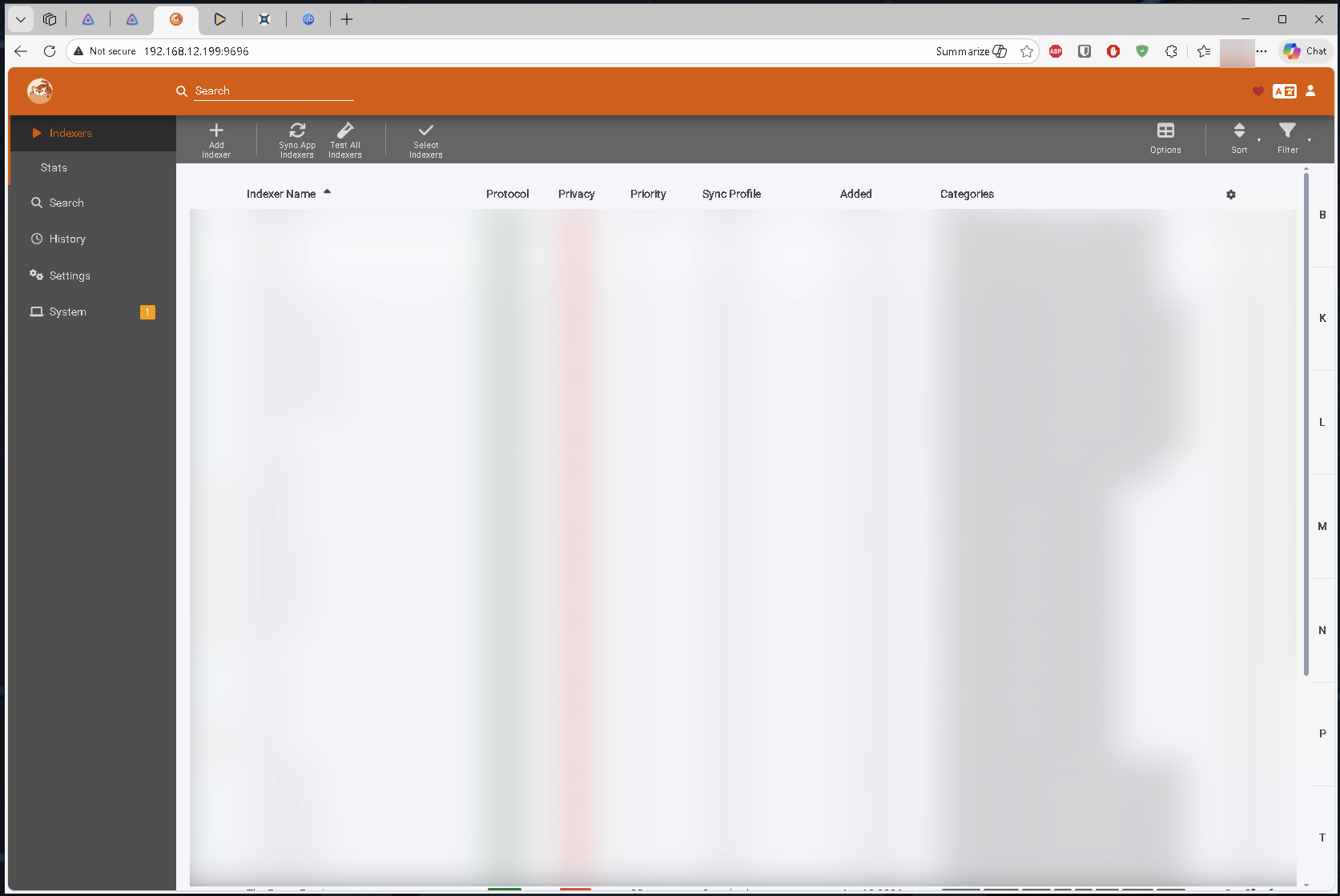
Prowlarr main page

Prowlarr (Indexers)

Central place to manage indexers and push results to Sonarr/Radarr.
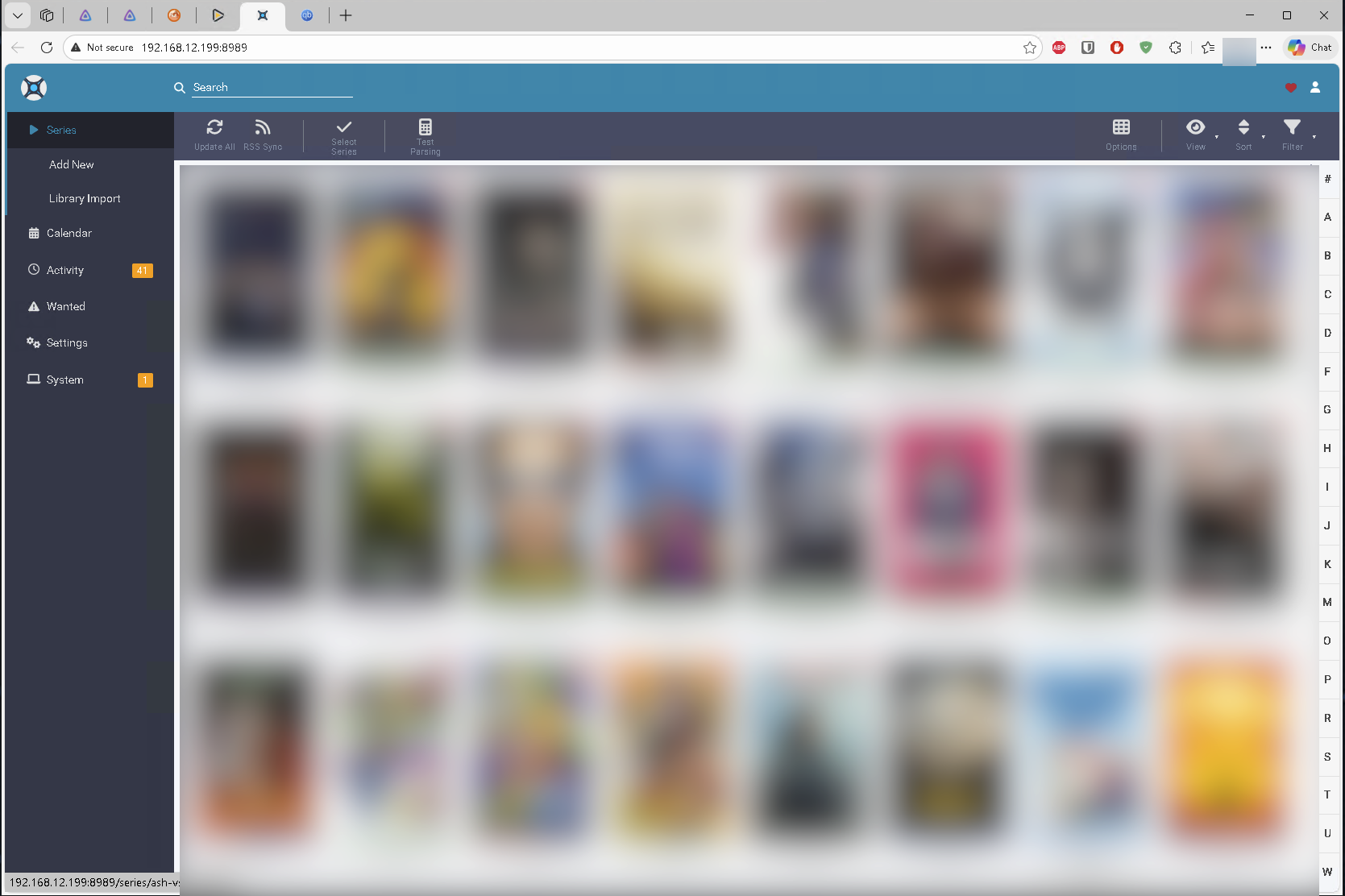
Sonarr main page

Sonarr (Automation)

Monitors your library and sends search requests to indexers.
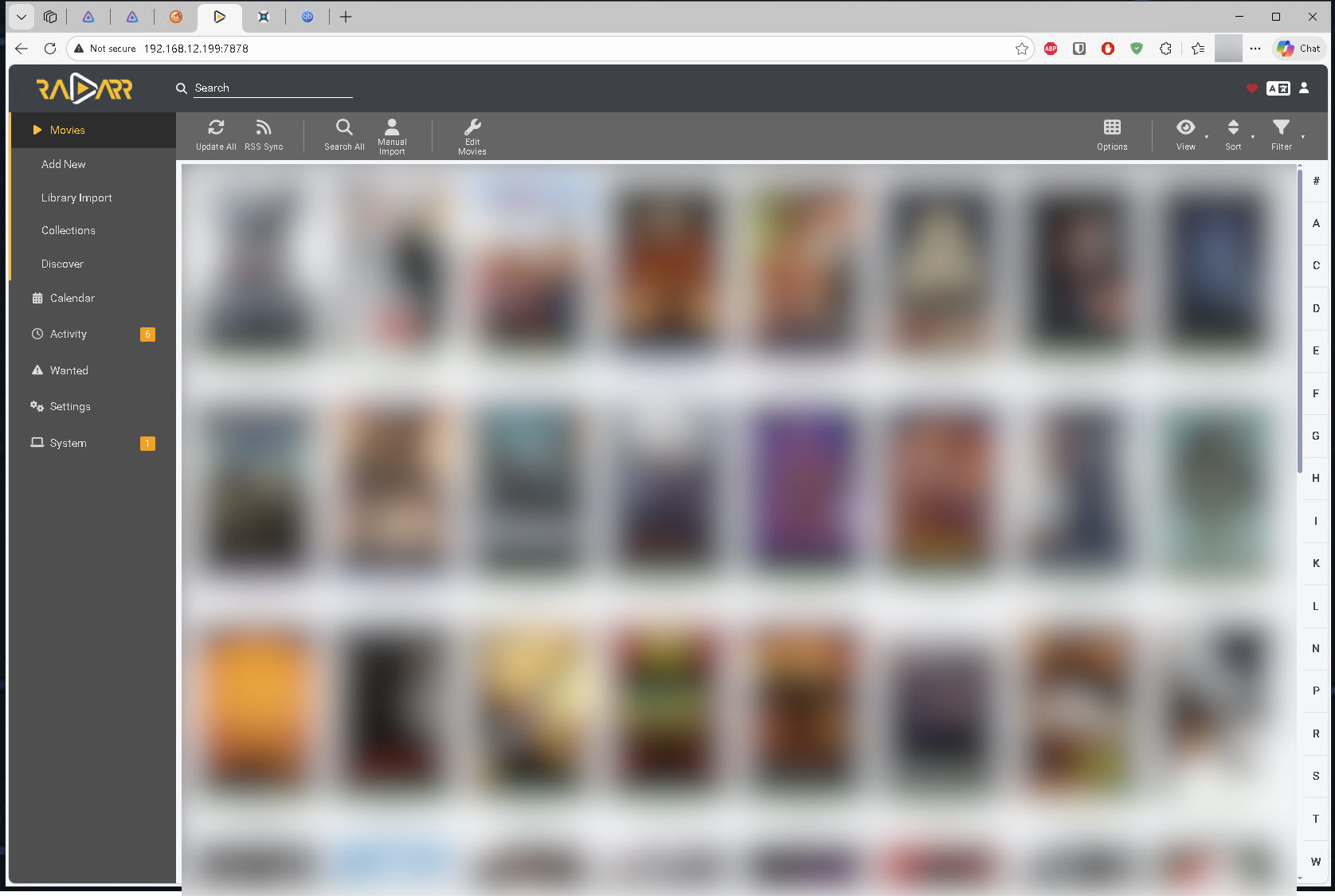
Radarr main page

Radarr (Automation)

Monitors your library and sends search requests to indexers.
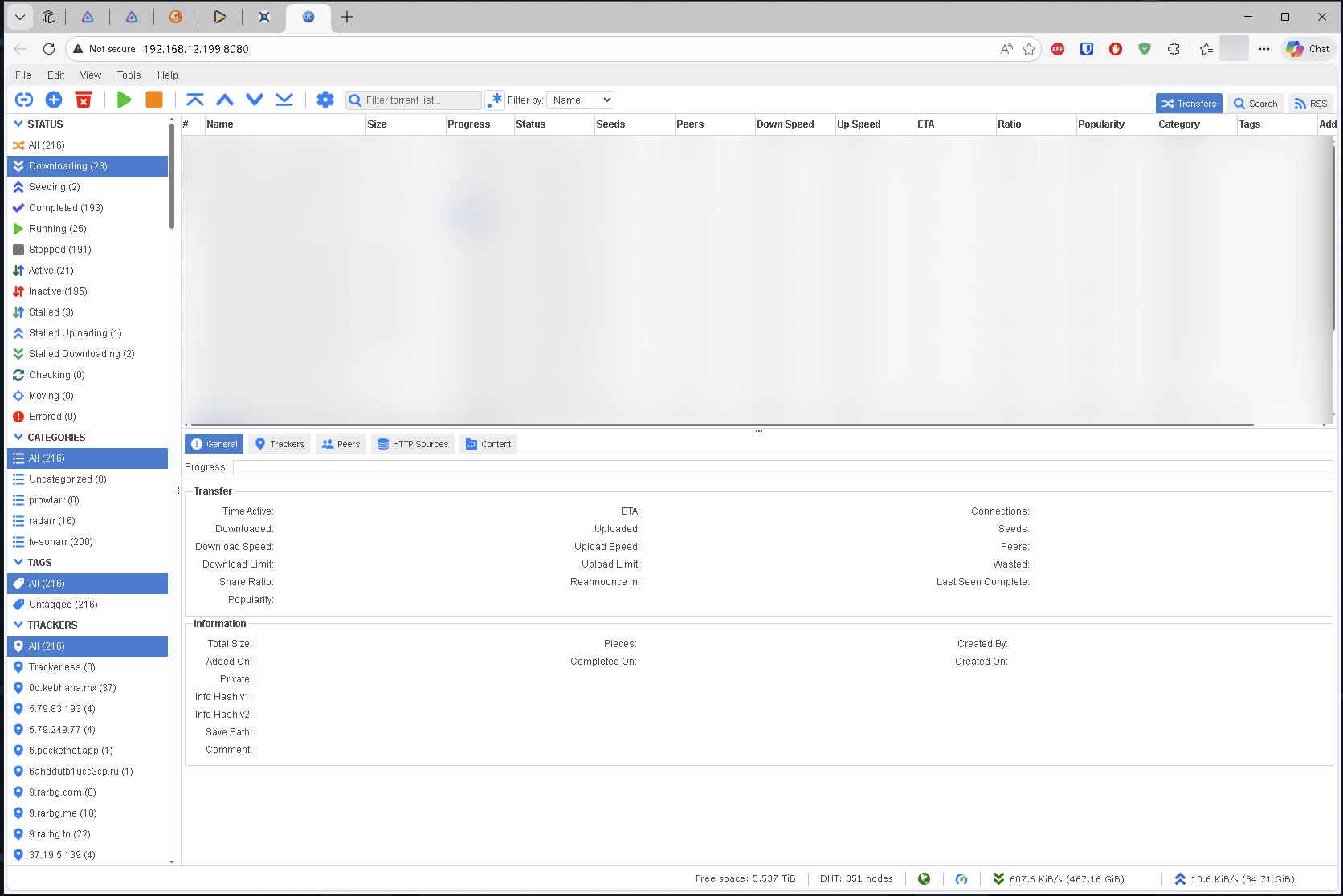
qBittorrent main page

qBittorrent

Download client that receives files from connected apps.

How to add indexers in Prowlarr

Use these steps to add an indexer and test it before saving.
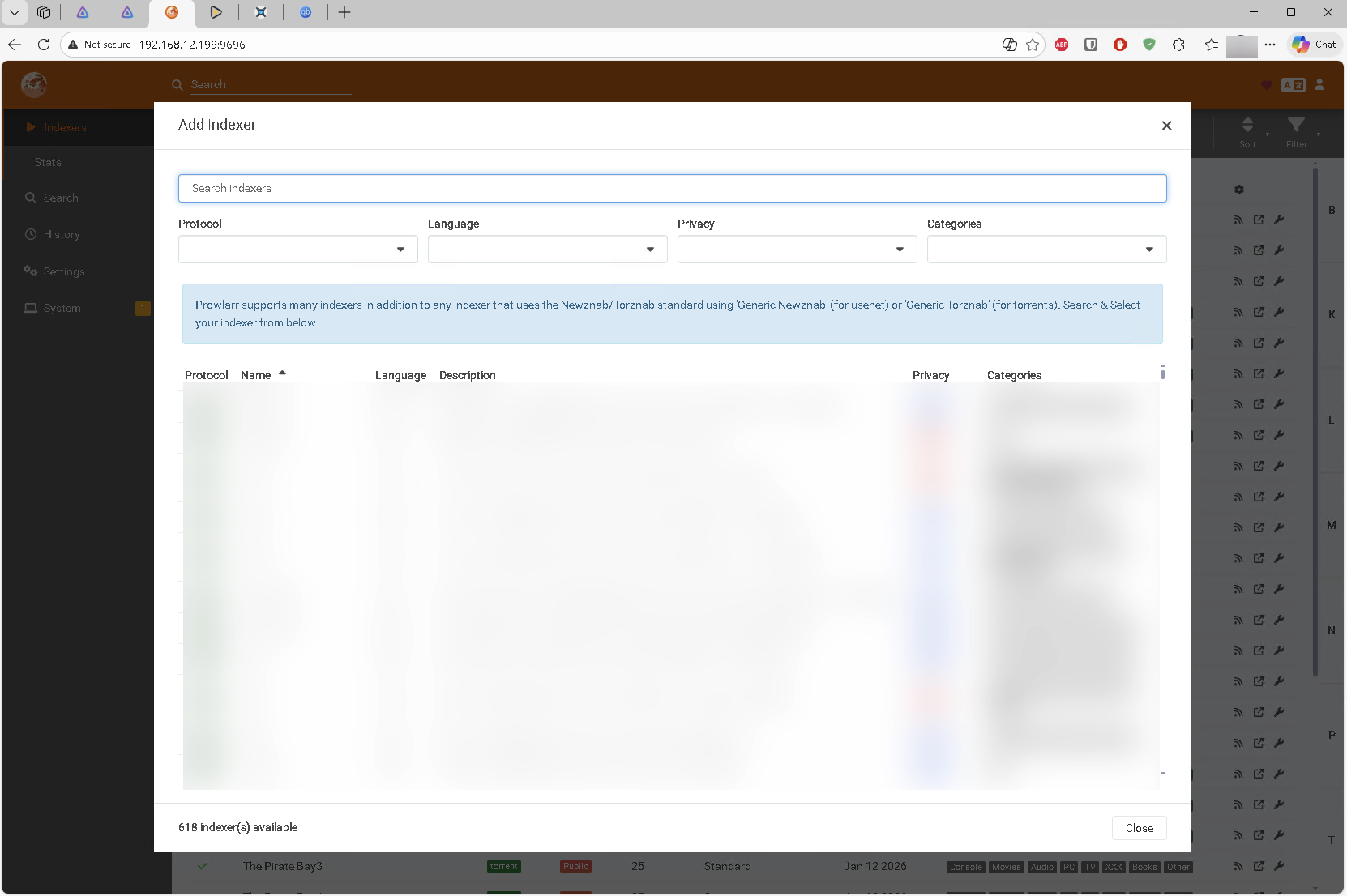
  1. Open Prowlarr and go to Indexers.
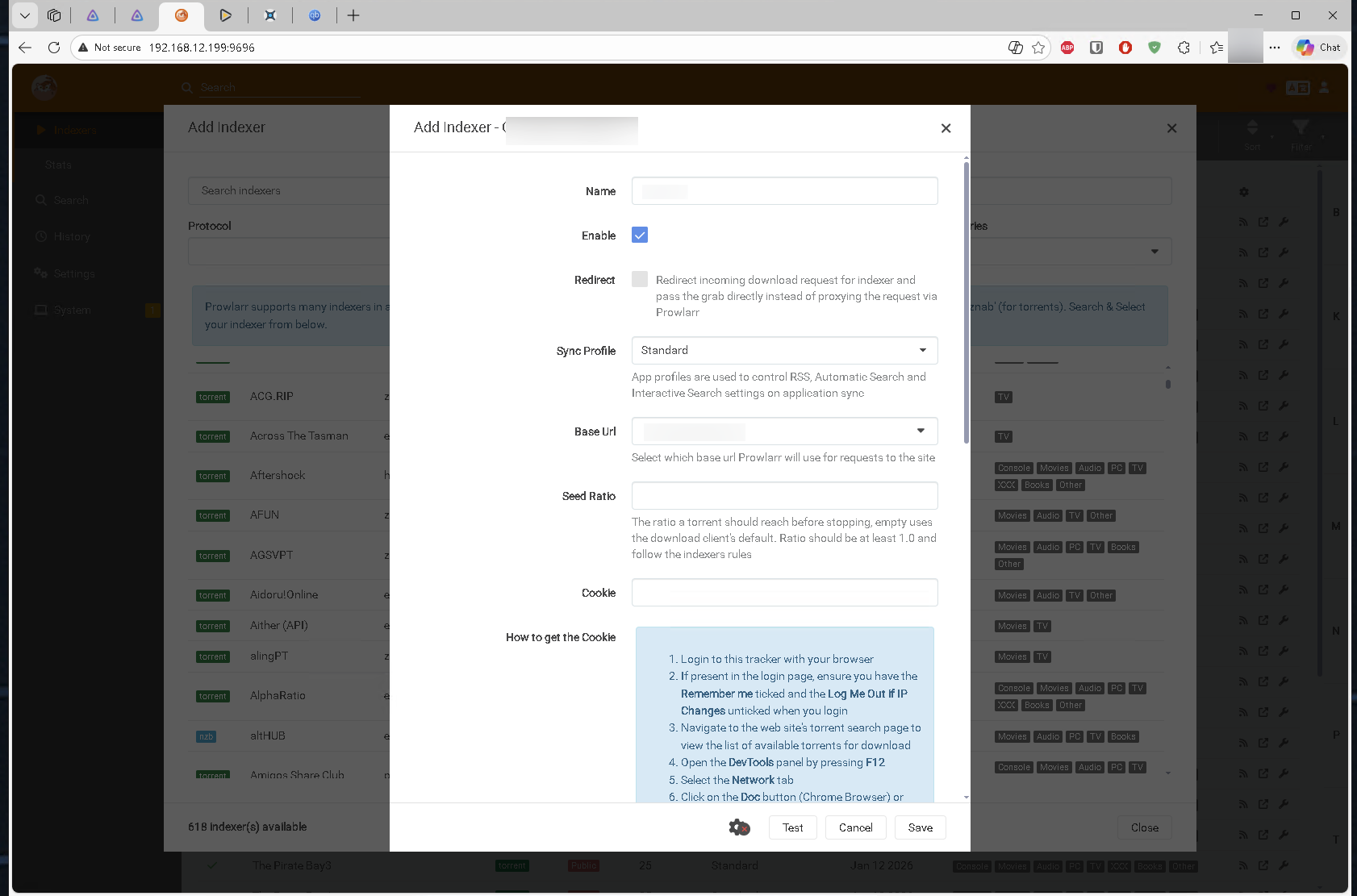
  2. Click Add Indexer and choose the provider.
  3. Choose a base URL (prefer the ones labeled Public because they usually work right away).
  4. Click Test, then Save when it succeeds.
Prowlarr add indexer screen
Add the indexer, choose a Public base URL, then test.
Prowlarr add indexer test
If the test succeeds, save the indexer.

If an indexer fails

Most failures are fixed by switching the base URL or using a different indexer.
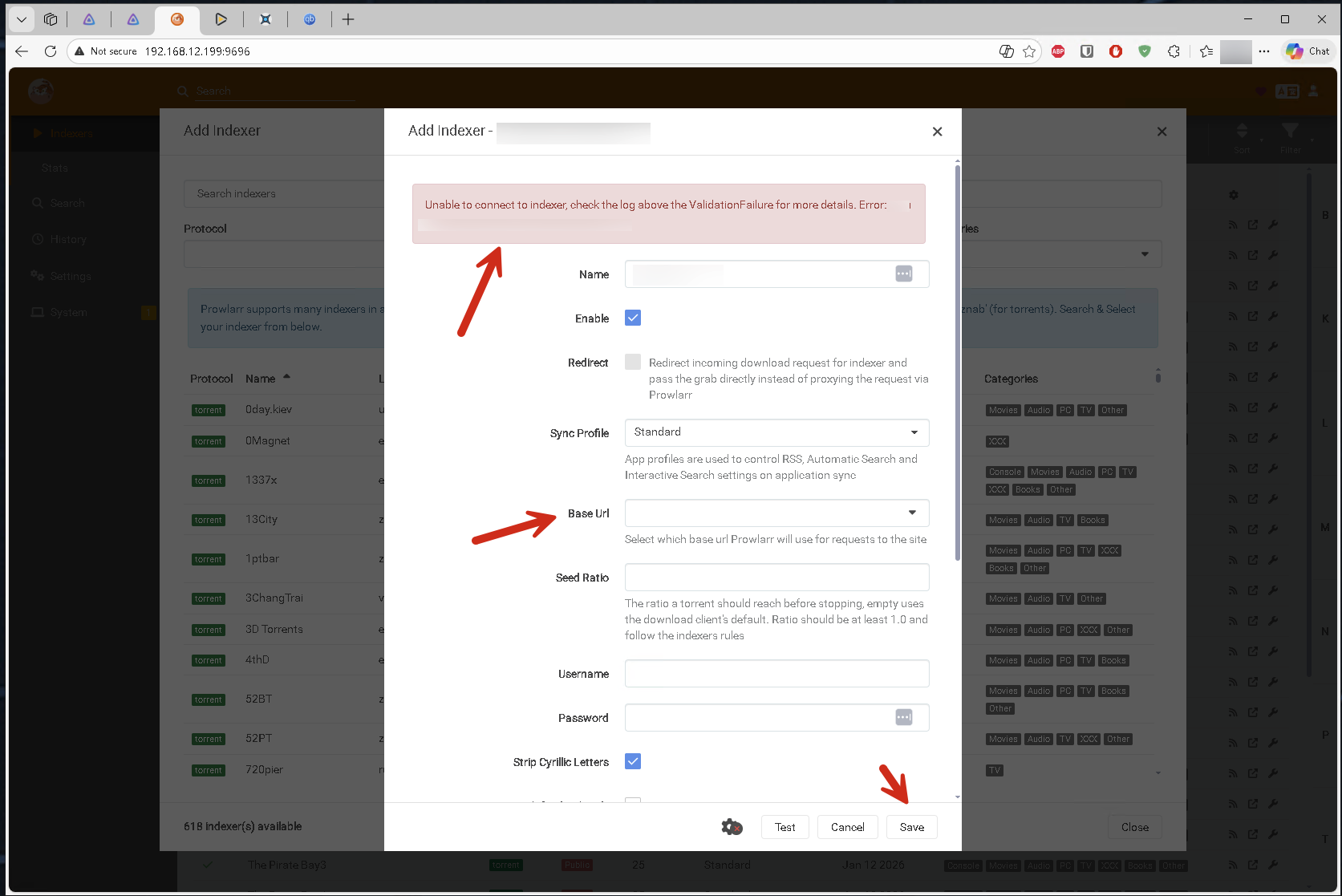
  1. If one indexer fails, switch the base URL and test again.
  2. If it still fails, try a different indexer.
  3. If all indexers fail, try another Public option or a different indexer.
  4. Try again later in case the indexer is temporarily down.
Prowlarr indexer error
Switch base URL or use another indexer when one fails.